Connecting an Arlyn Ultra Precision SAW scale to ERP or MES software lets your application save measured quantities against production jobs. UpScale, the touchscreen indicator, provides the communication link. Your application captures a weight, associates it with the selected job and container, and writes the production record.
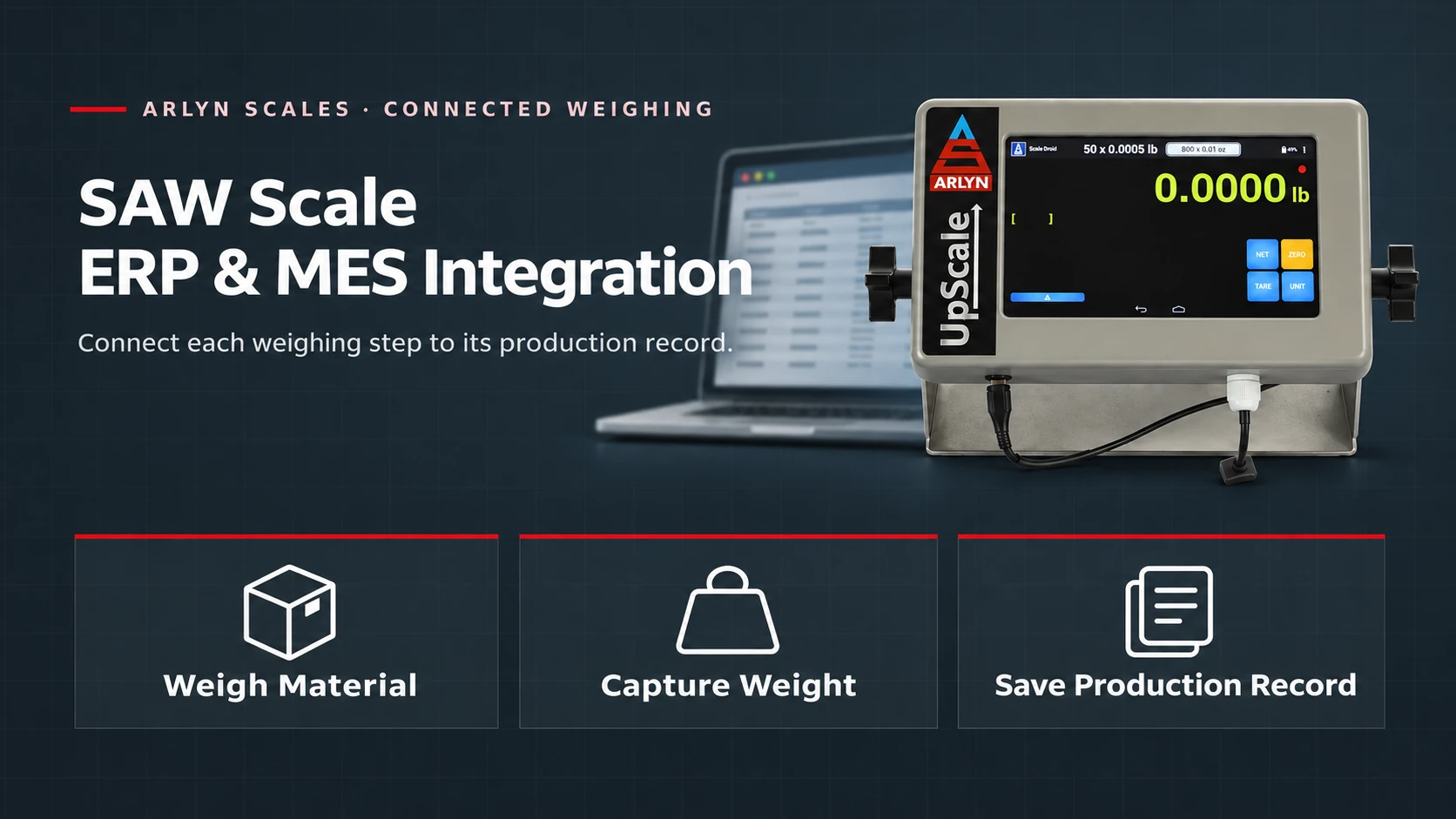
ERP software manages business records such as inventory and production orders. MES software tracks work on the production floor. Bringing scale readings into those systems helps connect the material actually weighed with the job being completed.
Small ingredient additions call for a scale that can show the required weight while supporting the container and its contents. SAW scales provide fine displayed increments at industrial capacities. For example, the SAW-C Ultra Precision scale has a 100 lb capacity with a 0.001 lb displayed increment.
From the weighing station to the batch record
In this example, an operator prepares pigment for a paint batch. The MES application already identifies the job and material. The operator places an empty container on the scale, tares it and adds pigment. Once the required amount has been weighed, the application records it against that job.
The operator can tare the container at UpScale, or the application can send a remote tare command if the weighing step is controlled from the MES screen.
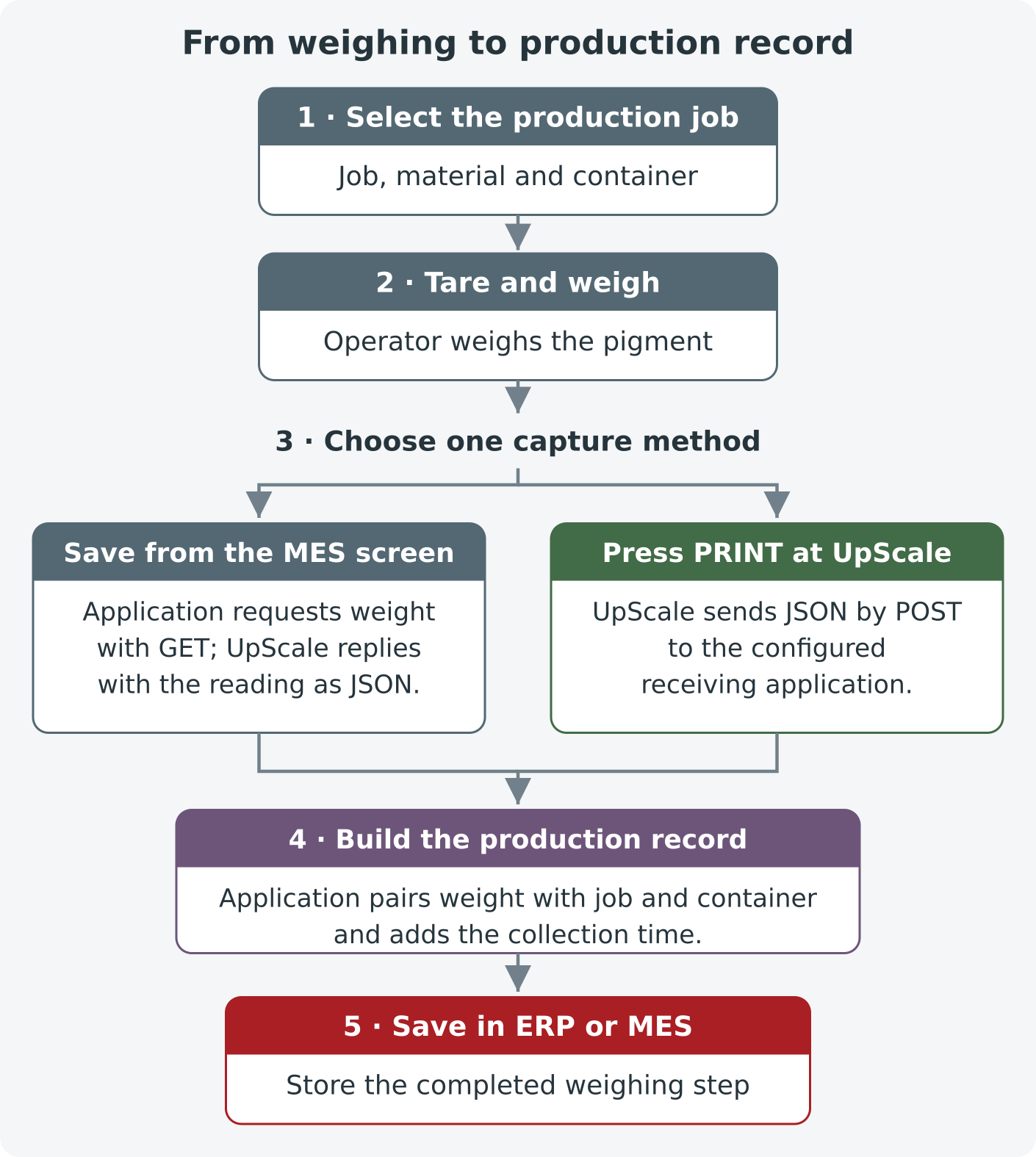
UpScale provides Web API communication using HTTP and JSON over Ethernet or Wi-Fi. At the capture point, there are two ways to collect the result:
GET: your application asks
Application → UpScale
UpScale replies with the reading as JSON.
The operator saves the weighing step from the MES screen. The application requests the current reading from UpScale, checks it and stores the result. It can also poll UpScale to keep the on-screen weight updated while the operator works.
JSON delivery: the scale sends
UpScale → your HTTP receiver
The indicator sends the reading by HTTP POST.
The operator presses PRINT at UpScale. The indicator sends JSON to the configured receiving application, which matches the reading to the active job and saves the weighing step. This suits a station where the operator captures the result at the scale.
In either arrangement, your application keeps the job and container identifiers. It stores the weight with its unit, tare and gross/net mode, adds the collection time and writes the ERP or MES record. The application also handles recipe targets, tolerance checks and accumulated batch totals.
For example, the application might receive a 0.375 lb net reading with a 2.000 lb container tare, then record 0.375 lb of pigment against job PB-104 and container C-17. The job and container IDs come from the application; UpScale supplies the reading and weighing settings.
JSON can also be sent periodically. In that case, your software needs to mark which reading completes the weighing step. Other readings can update a screen or a trend without creating another material transaction for the same container.
Your ERP or MES integration can collect the readings itself, or a service on a local PC or server can collect them and submit the records using the enterprise system’s authentication and software interface. The NetSuite scale integration guide shows an example of this approach.
For addresses, ports and working examples of both collection methods, see the industrial scale API integration guide, including the ScaleAPIMonitor receiver demonstration.
When the weighing station already uses a PLC
On a filling line, the PLC may already read the scale as it controls the process. The plant’s integration software can collect the result from the controller and pass it to ERP or MES. The weighing job then follows the same route as the rest of the machine’s production data.
UpScale offers Modbus TCP, EtherNet/IP and PROFINET options for networked PLC communication, as well as Modbus RTU/ASCII through a serial configuration. The PLC communication guide compares the interfaces, and the UpScale manual covers Modbus setup and registers.
The Web API can run alongside the selected Modbus TCP, EtherNet/IP or PROFINET option, so the PLC and a separate software application can use the same weighing system.
For stations in classified areas: ArlynGuard S can place the weighing platform in the classified area and UpScale in the safe area. Its configuration guide shows the display arrangements and the options available with each.
Reference: scale fields and production data
Keep the numeric reading with its unit and weight mode when mapping it into the production record. UpScale reports the fields below; job identifiers and other production details come from your application. This keeps the saved quantity meaningful when someone reviews the batch or updates inventory.
| Record content | Source and meaning |
|---|---|
| Weight and weighing state | UpScale: Weight is the numeric reading. Unit, Tare and Platform identify its unit, tare amount and weighing platform. |
| Gross/net mode and stability | UpScale: Gross indicates whether the reported weight is gross (true) or net (false). Stable, when provided, indicates stability; a missing value means stability is unknown. |
| Job, material, container and step | Your application: matches the reading to the job, ingredient, container and weighing step selected in your software. |
| Capture time and accumulated totals | Your application: records the collection or acceptance time and calculates batch totals from completed weighing steps. |
Supported remote controls include zero, applying or clearing tare, and toggling available units or gross/net mode. These control POST requests go to UpScale. The HTTP API reference lists the commands and response fields.
Frequently Asked Questions
Can I use GET to retrieve the weight?
Yes. Your application can request the reading when the operator saves a weighing step, or poll UpScale to refresh the weight on screen. GET remains a supported choice alongside scale-originated JSON delivery.
Will a JSON push create the ERP or MES record for me?
The push delivers the reading to your configured receiver. Your application links it to the job, material and container and writes the ERP or MES record. It also decides which readings complete a weighing step when data arrives periodically.
Can the API run alongside PLC communication?
Yes. An equipped UpScale can use its Web API concurrently with the selected Modbus TCP, EtherNet/IP or PROFINET option, allowing a PLC and a separate software application to collect data from the weighing system.
Where do job IDs, timestamps and batch totals come from?
The receiving application supplies the job and container information, records the collection or acceptance time and calculates totals. UpScale supplies the weight and its weighing settings. Those are separate parts of the completed production record.
Do I need a separate software bridge?
Your ERP or MES integration can collect scale data itself if it supports the required HTTP communication and record mapping. A service on a local PC or server is another option: it collects readings and submits records through the enterprise system’s software interface.
Connect SAW weighing to your production workflow
Explore Ultra Precision SAW scales and equip the selected scale with UpScale and the interfaces your application uses. For an existing weighing platform, the standalone UpScale indicator provides a separate integration route.
Explore Ultra Precision SAW Scales
Configure UpScale Touchscreen Indicator