Industrial Scale API: REST, JSON Output & Remote Control
An industrial scale API lets software collect readings and operate supported scale controls. Arlyn UpScale provides a REST HTTP API for application requests and remote commands, plus Web API Push for sending JSON to a configured receiver. Use Ethernet or Wi-Fi to connect the indicator and your application.
Which devices connect to the scale?
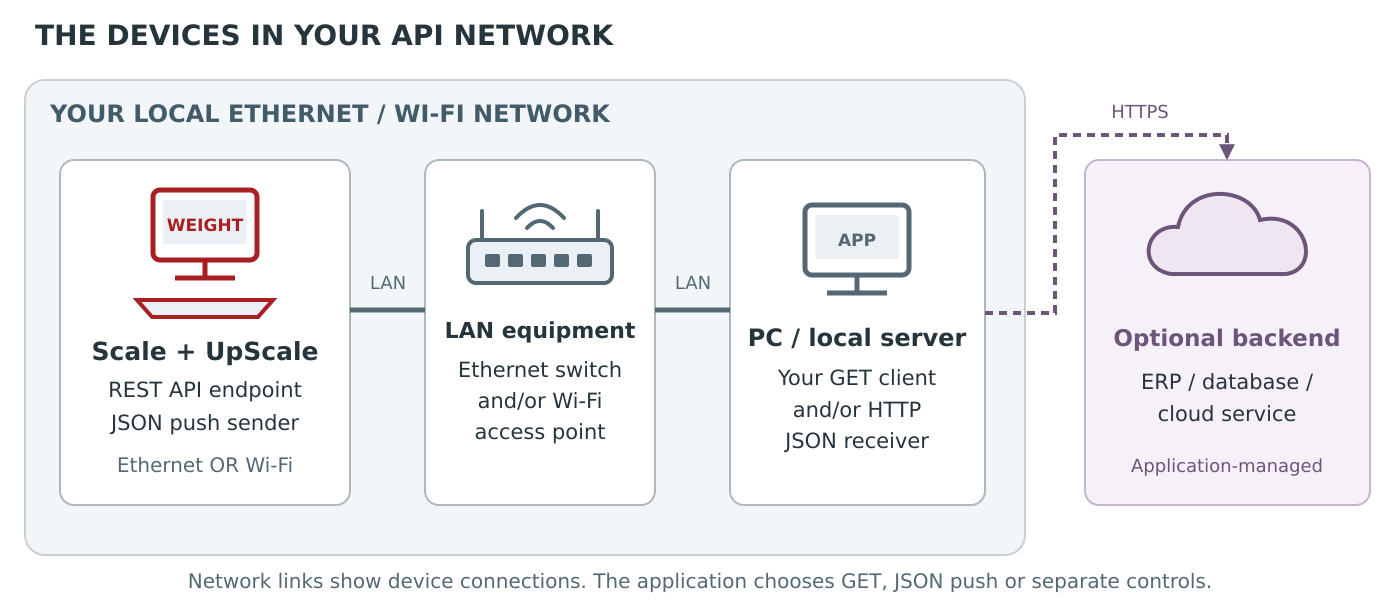
The scale and your receiving computer connect through an Ethernet switch or Wi-Fi access point on a reachable local network. UpScale hosts the REST API and can also send JSON pushes. Your PC or local server runs the requesting or receiving software; an external backend is optional.
Your application requests a reading from UpScale. The indicator replies with JSON.
UpScale POSTs JSON to your receiver periodically or through PRINT.
Your application POSTs supported zero, tare or other commands to UpScale.
A local collection workflow does not require an internet connection. Your application handles any backend forwarding and its authentication. ScaleAPIMonitor is a local JSON-push receiver demonstration with separate scale controls; a custom GET client can run on the same type of computer.
How do GET requests and JSON push differ?
GET weight retrieval starts with your application requesting a reading from UpScale, either on demand or through polling. JSON push starts with the scale sending an HTTP POST to a configured receiver periodically or through PRINT. Both deliver JSON weight data. Remote controls are separate POST requests sent to the indicator.
| Operation | Initiator and destination | Typical use |
|---|---|---|
| Read a weight (GET) | Application → UpScale REST API | Request a reading when your workflow needs it. |
| Receive JSON push (POST) | UpScale → your receiving URL | Collect periodic or PRINT-triggered readings. |
| Send a control command (POST) | Application → UpScale REST API | Zero, tare, clear tare or toggle an available unit/mode. |
GET: application requests a reading
Your software initiates. Request a weight on demand or poll at intervals chosen by your application.
Sends a request to the indicator
GET /api/1.0/weightIndicator IP address + configured API port
Validates fields and creates its record
Example indicator endpoint:http://192.168.1.141:8080/api/1.0/weight
Push: scale delivers a reading
The indicator initiates. A configured periodic or PRINT trigger sends JSON to your receiving application.
Periodic or PRINT trigger
PC address + listening port + URL path
Adds application IDs or collection time
Example receiving URL:http://192.168.1.50:8080/weight
The addresses and ports in these scenarios are examples. Use the indicator’s configured API endpoint for GET requests and your application’s reachable receiving URL for push delivery. Set up these two endpoints before testing. Remote zero/tare commands are POST requests to the indicator, separate from POST delivery to your receiver.
A shipping application can request a package weight when an operator saves a shipment. A tank-monitoring application can receive periodic readings. An operator can use PRINT to send the reading associated with a particular weighing step. These are example workflows; the receiving application handles its own records and business rules.
For the application-level workflow and practical weighing uses, see web application weight data collection.
Set up the scale and receiving application
Begin with an UpScale-equipped scale configured for the API option and Ethernet or Wi-Fi TCP/IP. Record the indicator’s IP address and configured HTTP API port. For push delivery, also identify the receiving computer’s reachable network address, listening port and URL path. The indicator and receiver have separate network endpoints.
| Setting | Example |
|---|---|
| Scale REST API | http://192.168.1.141:8080/api/1.0/ |
| PC push receiver | http://192.168.1.50:8080/weight |
| Dashboard on that PC | http://localhost:8080/ |
The addresses and port numbers above are examples. Use the port configured on your indicator. The receiver’s port is configured in your application. A scale cannot send to the PC’s localhost address; give it the PC’s network address. Keep the devices on a trusted network with the required connections permitted.
Read weight through the weighing scale REST API
Send a GET request to the indicator’s weight resource to read its current weighing state as JSON. The response identifies the displayed weight, unit, tare and gross/net mode, with platform and stability information where provided. Field names are case-sensitive, and the meaning of Weight depends on the Gross mode flag.
curl "http://192.168.1.141:8080/api/1.0/weight"Example response:
{"Platform":1,"Unit":"lb","Weight":128.4,"Tare":2.0,"Gross":false,"Stable":true}| Field | Meaning |
|---|---|
Weight |
Numeric reading in the reported unit; net when Gross is false, gross when true. |
Unit |
Unit used by Weight and Tare, such as lb or kg. |
Tare |
Numeric tare value in that same unit. |
Gross |
Boolean mode flag. It is not a numeric gross-weight field. |
Stable |
Stability flag when present. An omitted value is unknown, not proof that the reading is stable. |
Platform |
Identifies the weighing platform returned by the request. |
In this constructed example, the net reading is 128.4 lb and tare is 2.0 lb, so gross weight is 130.4 lb. A timestamp or device name added by your receiving application describes that application’s record; it is separate from the indicator’s documented response.
Receive periodic or PRINT-triggered JSON
Web API Push sends weighing data from UpScale to an application that accepts HTTP POST requests with JSON bodies. Configure the receiving URL on the indicator and select periodic or PRINT-triggered delivery for the workflow. The receiver parses the reading, validates the fields and decides how to store or use it.
- Start your receiver on a computer reachable from the scale.
- Enter that receiver’s full URL in UpScale’s Web API Push configuration, including its listening port and path.
- Use the JSON output and HTTP POST delivery configuration.
- Select the required delivery trigger: periodic readings or PRINT.
- Place an item on the scale, wait for the configured interval or press PRINT, and inspect the JSON received by the application.
A POST to your receiver delivers data. To operate the scale, send a separate supported REST command to the indicator. For ERP systems such as NetSuite, a receiving bridge can map the weighing data and perform the ERP’s authentication and record-writing steps.
Use remote zero/tare control
Remote commands call the indicator’s REST API with HTTP POST. They reproduce supported button actions such as ZERO and TARE while keeping data delivery separate. The examples below act on the current displayed platform. Unit and gross/net commands toggle state; applications can read the resulting state back to verify the change.
| Action | POST resource |
|---|---|
| Zero | /api/1.0/button/zero/click |
| Tare | /api/1.0/button/tare/click |
| Clear tare | /api/1.0/button/tare/longclick |
| Toggle unit | /api/1.0/button/unit/click |
| Toggle gross/net | /api/1.0/button/gross/click |
curl -X POST "http://192.168.1.141:8080/api/1.0/button/tare/click"
curl -X POST "http://192.168.1.141:8080/api/1.0/button/zero/click"
Use POST for these commands; entering the command address in a browser normally sends GET. The REST HTTP API reference describes the read resources and button actions.
Try ScaleAPIMonitor with a scale or demonstration
ScaleAPIMonitor is Arlyn’s free, open-source Python tool for viewing incoming JSON and testing REST controls. It runs a local web dashboard, accepts scale pushes and separately calls the indicator for button commands. Its demonstration mode supplies simulated readings and a mock scale API so you can explore the workflow without hardware.
- Install Python 3.8 or newer and download ScaleAPIMonitor. Extract the files and open a terminal in that folder.
- Start the receiver with the command below, or use
run.baton Windows. - Open
http://localhost:8080/on that PC and copy the dashboard’s push URL into the scale. Use the receiver’s network address, not localhost. - In the dashboard’s Scale control panel, enter the indicator’s IP address and configured API port, then select Test connection.
- Trigger a push and inspect the reading. Test a supported control when the weighing operation permits it. Restrict access to the trusted local network; the monitor dashboard has no login.
python scale_push_monitor.py

# Explore simulated readings and controls without a physical scale:
python scale_push_monitor.py --demo
Allow the receiver’s selected port on the trusted local network so the scale can reach it. Monitor-only routes such as /api/state, /events and /api/scale belong to the PC program. They are not additional indicator endpoints. See the monitor user guide and integration examples for application code.
Frequently Asked Questions
Can an industrial scale send JSON without my application polling it?
Yes. UpScale Web API Push sends JSON by HTTP POST to your configured receiving URL. Use periodic delivery or PRINT-triggered output for the weighing workflow. Your receiving application must be running and reachable from the indicator.
Can I zero or tare the scale remotely?
Yes. The REST API provides POST commands for ZERO, TARE and clear tare, plus unit and gross/net toggles. Push delivery supplies data to your receiver; remote controls are separate requests sent to the indicator.
Is the Gross field the gross weight?
No. Gross is a boolean identifying the reading mode. Weight contains the numeric reading, and Tare contains the tare amount. Interpret Weight as gross when Gross is true and net when Gross is false.
Does the API require an internet connection?
A local application can communicate with the indicator over a reachable Ethernet or Wi-Fi network. Internet access is needed only when the selected receiving service or workflow uses it. ScaleAPIMonitor can run locally after its software has been obtained.
What should software do if Stable is missing?
Treat stability as unknown. If your workflow accepts only stable readings, do not save a reading as stable until stability is positively established. Keep missing, false and true as distinct states in your integration logic.
Is this the same as Modbus or EtherNet/IP?
No. This guide covers HTTP requests and JSON delivery. Modbus, EtherNet/IP and PROFINET use their own integration methods. Compare the available interfaces on the Scale Options page to choose the connection suited to your application.
Choose an API-equipped scale
For a new Arlyn scale, select the UpScale touchscreen indicator and the API option with Ethernet or Wi-Fi on the Configure and Buy page. Use Scale Options to compare communications, then use this guide to connect the scale to your application, receiving service or local test computer.
Discuss Your Scale API Integration
Connect an UpScale-equipped scale to the software that needs its readings. Arlyn offers Ethernet and Wi-Fi communication with Web API options for weight retrieval, JSON delivery and supported remote controls. Contact our team for scale selection, communication options and pricing, or use the form below to discuss your integration.
Contact Arlyn Scales Compare Scale Communication Options Call 800-645-4301